
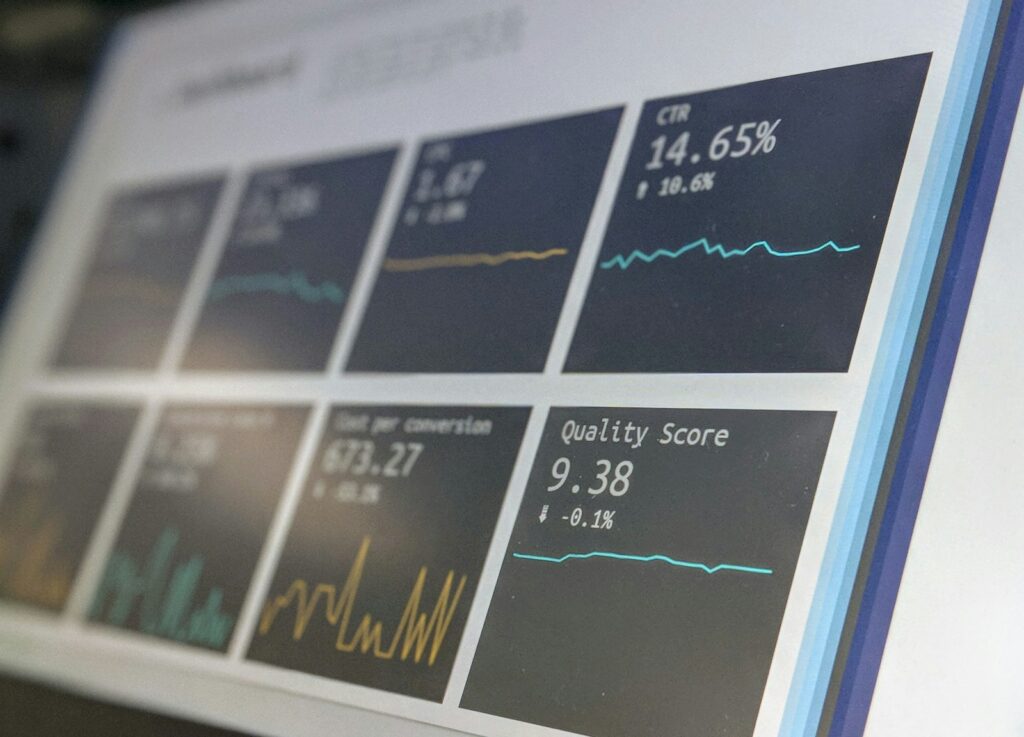
Quick answer: GA4 key events are the actions that matter, like form submissions and bookings. Mark only real enquiries and test them in DebugView.
Google Analytics 4 (GA4) tracks everything people do on your site. To make it useful, you need to tell it which actions matter: a form submission, a call button tap, a booking. In GA4 these are called key events. (Google renamed them from “conversions” in 2024. In Google Ads, “conversions” still means the actions you bid on.)
What should be a key event?
For a service business, usually only a handful:
- Form submitted (generate_lead)
- Booking completed
- Phone number tapped on mobile (useful, but a tap isn’t a completed call)
- Email link clicked (weaker signal)
- Purchase, if you sell online
Avoid marking page views, scrolls or “engaged sessions” as key events. They inflate numbers and hide what’s actually working.
Step 1: Make sure the event exists
GA4 records some events automatically (page_view, scroll, click on outbound links, file_download). Form submissions need care. GA4’s “enhanced measurement” form tracking often misfires, counting form *starts* or failing on AJAX forms.
The reliable approach is to fire a specific event only when a form is successfully submitted:
- Thank-you page: send people to a unique thank-you page and create an event when that page loads.
- Tag Manager: fire a generate_lead event on your form plugin’s success event or data layer push. See Google Tag Manager basics.
- Plugin integrations: many WordPress form plugins can send GA4 events directly.
Step 2: Mark it as a key event
In GA4 go to Admin → Data display → Events, find your event and toggle Mark as key event. If the event hasn’t fired yet, you can create the key event under Admin → Key events → New key event using the exact event name.
Step 3: Test it
Use Admin → DebugView (with Tag Assistant or the GA debug extension), submit a test form and check:
- The event fires once
- It fires only on success, not on a failed submission
- It has the right name
Then check Reports → Realtime.
Step 4: Connect to Google Ads
Link GA4 to Google Ads under Admin → Product links → Google Ads links. You can then import GA4 key events into Google Ads as conversions.
Many advertisers prefer the native Google Ads conversion tag for bidding (it’s typically more complete and supports enhanced conversions), while using GA4 for reporting across all channels. Avoid having both set as *primary* conversions for the same action in Google Ads, or you’ll double count. See Google Ads conversion tracking.
Step 5: Use it to compare channels
With key events set up, Reports → Acquisition → Traffic acquisition shows which sources (Google Ads, Facebook, organic search, email) bring enquiries, not just visits. Tag your ad links with UTM parameters so they’re labelled correctly. See UTM parameters explained.
Common mistakes
- Counting form views or starts as leads
- Thank-you pages reachable without submitting a form
- Duplicate events from both enhanced measurement and a custom tag
- Not filtering internal traffic (your own test submissions)
- Expecting GA4 and ad platform numbers to match exactly. See why your ad numbers don’t match.
Sources and further reading

Written by Gregory
20 years building websites and running lead generation, mostly with my own money on the line. Based in Sydney, working with clients worldwide. How I work →